 Skip to main content
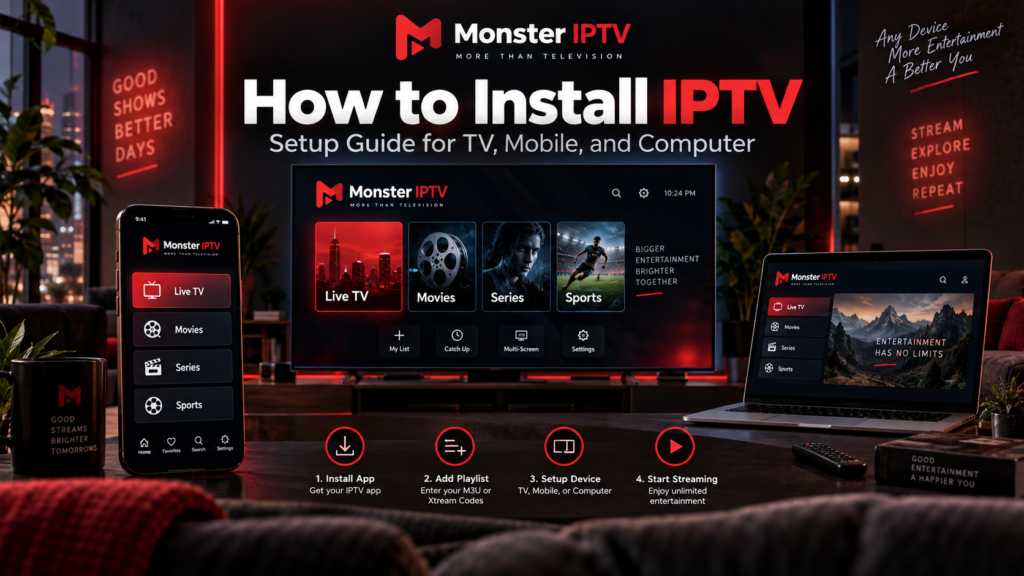
Learning how to install IPTV is easier when you understand the three things involved: a compatible device, an IPTV player, and an authorized source of television streams. Most setups involve installing an app, entering an M3U playlist or account credentials, and loading the channel list.
The exact process depends on whether you use a Samsung or LG Smart TV, Android TV, iPhone, Apple TV, or computer. This guide explains the basic setup for each platform, how to connect IPTV, and what to check if something does not work.
What Do You Need Before Installing IPTV?
Prepare the following before starting:
- A compatible television, streaming device, phone, tablet, or computer
- A stable internet connection
- An IPTV player compatible with your device
- An authorized IPTV playlist or account
- An M3U URL or supported login credentials
- EPG information, if provided separately
An IPTV player and an IPTV subscription are not the same thing. A player displays streams, while the content source supplies the channels.
Before subscribing to any service, check that it has permission to distribute the content you want to watch.
Monster IPTV also provides device-specific installation instructions for users who need guidance for individual players.
Step 1: Choose the Right IPTV App for Your Device
The first step is identifying your operating system.
| Device | Installation method |
|---|---|
| Samsung Smart TV | Compatible app from Samsung’s app store |
| LG Smart TV | Compatible app from LG’s app store |
| Android TV or Google TV | Compatible app from Google Play |
| Android phone or tablet | IPTV player from Google Play |
| iPhone or iPad | Compatible app from Apple’s App Store |
| Apple TV | Compatible tvOS application |
| Windows or Mac | Desktop IPTV player or compatible media player |
Check the app’s supported login formats before installing it.
Some players accept M3U URLs, while others use Xtream-style credentials or a device-based playlist activation system.
App availability can also vary by television model and region, so verify compatibility with your actual device.
Step 2: How to Install IPTV on Samsung Smart TV
Samsung Smart TVs use the Tizen operating system rather than Android TV.
Samsung Sweden’s official instructions explain that applications can be installed through the TV’s search interface. The company also notes that availability may differ by region and model.
Samsung Sverige
+1
Follow these steps:
- Connect your Samsung TV to the internet.
- Press the Home button on the remote.
- Open the app search function.
- Search for a compatible IPTV player.
- Select the application and choose Install.
- Open the player once installation finishes.
After installation, follow the app’s instructions to add your playlist or account information.
Some players use a device identifier and an external playlist-management website. Others accept login credentials directly.
Do not assume that an Android APK can be installed on Samsung’s Tizen operating system.
Step 3: How to Install IPTV on LG Smart TV
LG Smart TVs use webOS.
The installation process is similar to Samsung’s, but the app environment is different.
LG’s Swedish support documentation explains how to download and install applications through the television’s app interface.
LG Electronics
+1
To begin:
- Connect your LG television to the internet.
- Press Home on the remote.
- Open Apps or LG Content Store, depending on your webOS version.
- Search for an IPTV application compatible with your television.
- Install and launch it.
- Add your authorized IPTV information.
If the application does not appear, check whether it supports your exact model and software version.
An external streaming device may be an alternative when your television does not support the player you intend to use.

Step 4: How to Set Up IPTV on Android TV and Google TV
Android TV and Google TV provide access to compatible applications through Google Play.
Google’s official instructions explain that users can search for an application, open its listing, and select Install when it is available for their device.
Google TV Help
+1
The typical setup process is:
- Open Google Play or the Apps section.
- Search for your preferred IPTV player.
- Install the compatible application.
- Launch it.
- Select Add Playlist or the relevant login option.
- Enter your IPTV details.
- Save the configuration.
After loading the playlist, organize your channels and configure the programme guide if necessary.
Choose a television-focused application with remote-control navigation rather than assuming every Android phone app will work comfortably on a TV.
Step 5: How to Connect IPTV on Android Phones
Android phones use a similar setup process, but the player should have a touch-friendly interface.
Open Google Play and install an application that supports your playlist or account format.
Once installed, open the player and enter the required information.
If you have an M3U URL, choose the corresponding playlist option.
If you have a username, password, and server address, select the compatible login method.
Save the information and allow the application to load the available channels.
A mobile-friendly player may also offer search, favourites, Picture-in-Picture, or casting, depending on the application and device.
Step 6: How to Install IPTV on iPhone and iPad
On iPhone and iPad, IPTV applications are installed through Apple’s App Store.
Start by identifying an application that supports your particular device and connection method.
Then:
- Open the App Store.
- Search for the IPTV player’s name.
- Check its compatibility information.
- Install the application.
- Open it and add your playlist or account.
- Save the configuration.
- Load the available channels.
If you intend to use the same application on Apple TV, check whether it also offers a tvOS version.
An iPhone-compatible app does not automatically support Apple TV.
Step 7: How to Set Up IPTV on Apple TV
Apple TV 4K and Apple TV HD support downloading compatible applications through the App Store.
Apple confirms that third-generation Apple TV hardware does not provide the same ability to download new applications, so identifying your device model is important.
Apple Support
+1
For a supported device:
- Open the Apple TV App Store.
- Search for a compatible IPTV application.
- Select Get or the displayed purchase option.
- Install and open the application.
- Add the required playlist or login information.
- Save your settings.
Choose a player designed for the Apple TV remote and television interface.
Step 8: How to Install IPTV on Windows and Mac
Computers offer a different approach because some media players can open IPTV stream URLs without requiring a dedicated television-style application.
VLC is one example. VideoLAN documents its ability to open network streams through the Media menu.
VLC Desktop User Documentation 3.0 documentation
+1
On Windows, the basic process is:
- Install VLC from its official website.
- Open the application.
- Select Media.
- Choose Open Network Stream.
- Enter a compatible stream URL.
- Select Play.
For a complete channel-based IPTV experience, a dedicated desktop player may be more convenient because it can offer playlist categories and EPG functionality.
VLC is useful for testing compatible streams, but its interface differs from a traditional television application.
Step 9: How to Add an M3U Playlist
An M3U playlist contains information that allows a compatible player to locate and organize media streams.
When your IPTV source supplies an M3U URL, the general procedure is:
- Open the IPTV application.
- Locate Add Playlist or M3U URL.
- Enter a name for the playlist.
- Paste the complete URL.
- Save the information.
- Refresh the playlist if necessary.
Do not remove parts of the address or change its formatting.
Keep private playlist URLs confidential because they may contain account-specific information.
Step 10: How to Set Up IPTV With Xtream-Style Login
Some IPTV applications use a different connection method.
Instead of entering a long playlist URL, you may receive:
- Server URL
- Username
- Password
Select the appropriate login option and enter these details exactly as supplied.
The application may then organize live TV, programme-guide information, and other supported content into separate categories.
Neither M3U nor Xtream-style login automatically provides better picture quality. These are connection methods, not guarantees about streaming performance.
Step 11: Configure the EPG
EPG stands for Electronic Program Guide.
It displays programme schedules and helps you find current and upcoming television broadcasts.
Some IPTV applications automatically retrieve EPG information. Others require a separate XMLTV URL.
If your channels work but programme information is missing, check the EPG source before changing your internet settings.
For users in Sweden, confirm that your device has the correct local time and time zone. Incorrect settings can cause programme schedules to appear at the wrong hour.
Common IPTV Installation Problems
Several issues can occur during the first setup.
The IPTV app will not install: Check the operating system, device compatibility, available storage, and app-store availability.
The playlist will not load: Verify the M3U URL or login credentials. Even one incorrect character can prevent authentication.
Channels appear but do not play: Test several channels to determine whether the problem affects one stream or the entire playlist.
IPTV keeps buffering: Compare Wi-Fi and Ethernet, restart the device, and test another streaming application before changing advanced router settings.
The EPG is empty: Refresh the guide and confirm that the correct EPG source is configured.
Monster IPTV’s FAQ also contains information about connections, devices, and common service questions.
FAQ
How do I install IPTV for the first time?
Install a compatible IPTV player, enter your authorized M3U playlist or supported account credentials, save the configuration, and allow the channel list to load.
Do I need an IPTV box?
Not necessarily. A compatible Smart TV, phone, tablet, or computer may be sufficient. An external device can be useful when your television does not support the required application.
Can I install IPTV on any Smart TV?
Compatibility depends on the television’s operating system, model, software version, and available applications.
How do I connect IPTV to my television?
You can install a supported player directly on the television or use a compatible external streaming device connected through HDMI.
Why is my IPTV not showing channels?
Check that the playlist or login details are correct, the internet connection works, and the app has successfully refreshed its channel information.
Conclusion
Understanding how to install IPTV starts with choosing the correct application for your device. Smart TVs, Android devices, Apple TV, phones, and computers have different installation methods, but most setups follow the same principles: install a compatible player, add your authorized connection information, load the channels, and configure the EPG. For additional device instructions and IPTV information aimed at viewers in Sweden, visit Monster IPTV .
