 Skip to main content

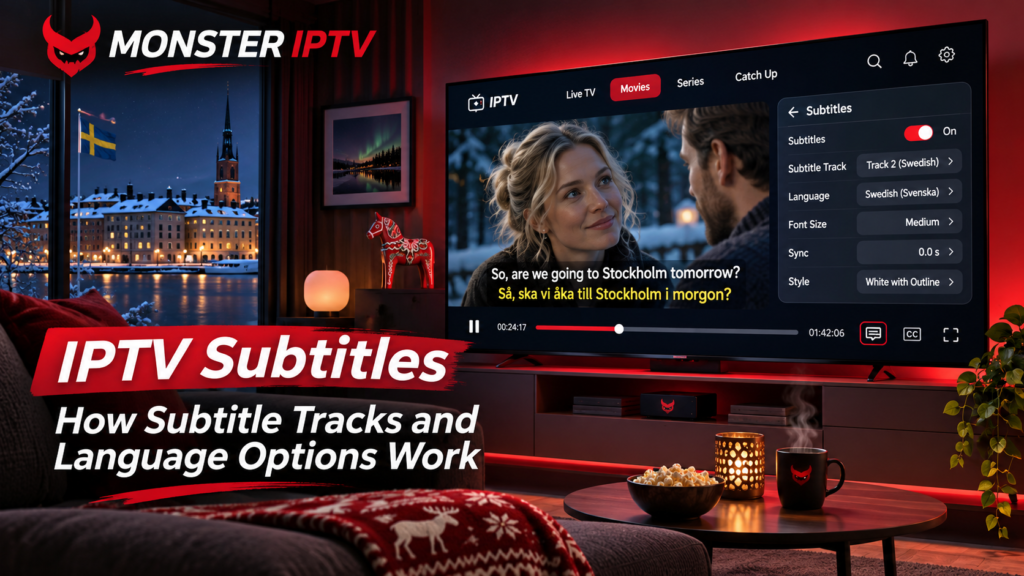
IPTV subtitles can make live TV, films, and series much easier to follow, especially when you watch international content or prefer Swedish text with another spoken language. In most cases, subtitles are carried as a separate track inside the stream or supplied alongside the video, and your IPTV player lets you choose whether to display them.
The important point is that subtitles on IPTV depend on both the source stream and the player. If a Swedish subtitle track is included but not selected, you may simply need to change the playback settings. If no subtitle track is supplied, changing the app settings cannot create one automatically.
This guide explains how subtitle tracks work, how language selection works, where to find common IPTV subtitle settings, and what to check when subtitles are missing or displaying incorrectly.
How Do IPTV Subtitles Work?
An IPTV stream can contain several separate components, including:
- video
- one or more audio tracks
- subtitle or caption tracks
- programme information
A film, for example, could contain English audio together with Swedish, Norwegian, Danish, and English subtitle tracks. Your IPTV player reads the available tracks and lets you select the one you want.
Not every stream contains multiple languages. Some live channels may have only one audio track and no subtitles at all, while films and series may offer several subtitle options.
This means the IPTV player generally does not decide which languages exist. It can only display the tracks included in the stream or otherwise supplied with the content.
For viewers in Sweden, this distinction is particularly useful when watching international films, Nordic programming, sports, or channels where the original audio is not Swedish.
Subtitle Tracks vs Audio Language
Subtitles and audio tracks are separate settings.
Changing the subtitle language does not normally change the spoken language, and changing the audio track does not automatically enable subtitles.
For example, a programme might offer:
- English audio with Swedish subtitles
- English audio with English subtitles
- Swedish audio with no subtitles
- original-language audio with several subtitle languages
During playback, look for separate menus called Audio, Subtitles, CC, Languages, or Audio & Subtitles.
If your IPTV app provides both options, select the audio language first and then choose the subtitle track that suits you.
How to Turn On Subtitles on IPTV
The exact controls vary between IPTV apps, Smart TVs, streaming boxes, and mobile devices, but the general process is similar.
While a channel, film, or episode is playing:
- Open the playback controls using your remote, mouse, or touchscreen.
- Look for Subtitles, CC, Captions, Languages, or Audio & Subtitles.
- Open the subtitle list.
- Select Swedish, English, or another available language.
- Resume playback.
The player may label Swedish as Swedish, Svenska, SV, or SWE, depending on how the track has been tagged.
If no subtitle menu appears, check the application’s main playback settings. Some players allow you to set a preferred subtitle language globally rather than selecting it every time.
Monster IPTV users can also review the available IPTV installation guides when checking where playback settings are located on different devices.
IPTV Subtitle Settings You May See
Different IPTV players expose different controls. Some provide only an on/off switch, while others include more detailed settings.
Preferred Subtitle Language
This tells the player which language to select automatically when several tracks are available.
For someone watching IPTV in Sweden, setting Swedish as the preferred language can reduce the need to select the same track each time.
However, a preferred language setting does not guarantee Swedish subtitles. The stream still needs to contain a Swedish track.
Subtitle On or Off
Some players remember whether you previously enabled subtitles.
If subtitle tracks are available but nothing appears, first check whether subtitles have simply been disabled.
Subtitle Delay or Synchronisation
A subtitle track can occasionally appear too early or too late compared with the dialogue.
Some players offer subtitle delay controls that let you move the text slightly forwards or backwards.
Before changing this setting significantly, test another programme. If the timing problem occurs only on one stream, the issue may be with that particular subtitle track rather than the player.
Text Size and Position
Depending on the device, you may be able to change:
- font size
- subtitle position
- text colour
- background
- opacity
Some IPTV apps use their own appearance controls, while others rely partly on the Smart TV, Android, Apple TV, or device accessibility settings.

Why Are IPTV Subtitles Missing?
Missing subtitles do not always indicate an app problem.
There are several possible reasons.
The Stream Has No Subtitle Track
This is one of the most common explanations.
If you open the subtitle menu and no languages are listed, the stream may simply not contain subtitles.
An IPTV app cannot normally display a subtitle language that was never included in the source.
The Wrong Track Is Selected
Some streams contain several tracks with unclear labels.
You might see options such as:
- Track 1
- Track 2
- ENG
- SWE
- Unknown
- Forced
If the labels are incomplete, try each available track to determine which one contains the language you need.
The Player Cannot Read the Subtitle Format
Subtitle support can vary between applications and playback engines.
A track that works in one IPTV player may not necessarily display in another if the second app does not handle that subtitle format or stream configuration correctly.
This is one reason users can see subtitles on a phone or Android TV while the same content behaves differently on an LG or Samsung Smart TV app.
The App Needs to Be Updated
Player behaviour can change after operating-system or application updates.
If subtitles previously worked but suddenly disappear, check whether:
- the IPTV app has an available update
- the television or streaming device was recently updated
- the subtitle option moved to another menu
- switching the player engine is available inside the app
Do not assume immediately that the IPTV subscription itself is responsible.
Live TV vs Movies and Series
Subtitle availability can differ between live television and on-demand content.
Live IPTV channels often reproduce whatever language and subtitle information is present in the live source. Some channels may include several subtitle tracks, while others may provide none.
Movies and series can be different because an individual title may contain multiple audio and subtitle languages.
As a result, you might find Swedish subtitles on a film but not on a particular live channel, even when both are accessed through the same IPTV app.
If you are comparing content before viewing, the Monster IPTV channel information page is more appropriate for checking listed content than assuming every stream includes the same language options.
What Does “Forced Subtitles” Mean?
Some players display a track marked Forced.
Forced subtitles are intended to display only specific dialogue rather than subtitle the entire programme.
For example, an English-language film may contain a short conversation in another language. A forced subtitle track can translate only those scenes.
This is different from a complete Swedish or English subtitle track that displays dialogue throughout the film.
If you enable a forced track and subtitles appear only occasionally, the player may be working exactly as intended.
Subtitles on Smart TV, Android TV and Apple Devices
The method of accessing subtitles depends heavily on the platform.
Smart TV
Samsung and LG IPTV apps usually expose subtitle options through the playback menu or remote-control options. Exact features vary by app and television model.
Do not assume that because one IPTV player supports subtitles on Android, its Smart TV version offers identical controls.
Android TV and Google TV
TV-focused Android players commonly place subtitle and audio-track controls in the playback menu.
Depending on the application, you may also be able to set a default language or change the playback engine.
Fire TV
Fire TV IPTV players generally follow a similar approach to Android-based apps, with subtitle controls available during playback if the application supports the stream’s subtitle format.
iPhone, iPad and Apple TV
Apple-based IPTV players may show subtitle choices under a language, speech-bubble, or Audio & Subtitles menu.
The available languages still depend on the content and player.
If you are unsure how a particular device should be configured, the broader Monster IPTV FAQ section can help separate general setup questions from content-specific subtitle problems.
Why Are My IPTV Subtitles in the Wrong Language?
If subtitles automatically appear in English when you want Swedish, first check the preferred-language settings in your player.
Look for options such as:
- Preferred subtitle language
- Default subtitles
- Language
- Auto-select subtitles
Set Swedish as your preferred language if the application supports that function.
Then reopen the content.
If Swedish still does not appear in the track list, the stream may not include Swedish subtitles. Changing the default language cannot add a track that is unavailable.
It can also help to disable automatic subtitle selection temporarily and manually inspect every listed track.
Can You Add External Subtitles to IPTV?
Some media players support external subtitle files such as SRT files, especially for locally stored or on-demand video.
However, this functionality varies significantly between IPTV apps and devices.
For ordinary live television, manually adding an external subtitle file is generally less practical because the text needs to remain synchronised with a continuous live broadcast.
If external subtitles are important to you, verify that feature directly with the developer of the player you intend to use rather than assuming all IPTV apps support it.
Do M3U Playlists Control Subtitles?
An M3U playlist mainly tells the IPTV player where streams are located and can include related metadata.
It does not automatically guarantee subtitle availability.
The subtitle tracks normally depend on the underlying media stream and how the player processes it.
This means changing an M3U playlist name, channel group, or EPG setting will not necessarily fix missing subtitles.
EPG and subtitles should also not be confused. An EPG provides programme-guide information such as programme titles and schedules. Subtitle tracks provide text associated with the video or dialogue.
FAQ About IPTV Subtitles
Do all IPTV channels have subtitles?
No. Subtitle availability depends on the individual stream, channel, programme, and player. Some may provide several languages, while others may provide none.
How do I get Swedish subtitles on IPTV?
Open the subtitle menu while the content is playing and select Swedish, Svenska, SV, or SWE if it is available. You can also set Swedish as the preferred subtitle language in players that support this setting.
Why can I see subtitles on one IPTV app but not another?
Different apps can use different playback engines and support different subtitle formats. The same stream can therefore behave differently between applications or operating systems.
Can an IPTV player automatically translate subtitles?
Normal subtitle selection does not automatically translate an existing track. A player usually displays the subtitle languages supplied with the stream. Translation features, where available in particular software, are separate from ordinary IPTV subtitle handling.
Are subtitles and EPG the same thing?
No. Subtitles display dialogue or related text during playback. EPG data provides programme titles, schedules, and guide information.
Understanding Subtitle Options Before Troubleshooting
IPTV subtitles are controlled by two main factors: what subtitle tracks the stream provides and what the IPTV player can display. If Swedish subtitles are available, they can usually be selected through the playback controls or set as a preferred language. If the subtitle menu is empty, changing language preferences alone will not create a missing track.
When troubleshooting, first confirm that a subtitle track exists, then check the selected language, player settings, and device compatibility. If you are setting up a compatible IPTV player in Sweden and want additional device guidance, visit Monster IPTV for current installation and service information.
