 Skip to main content
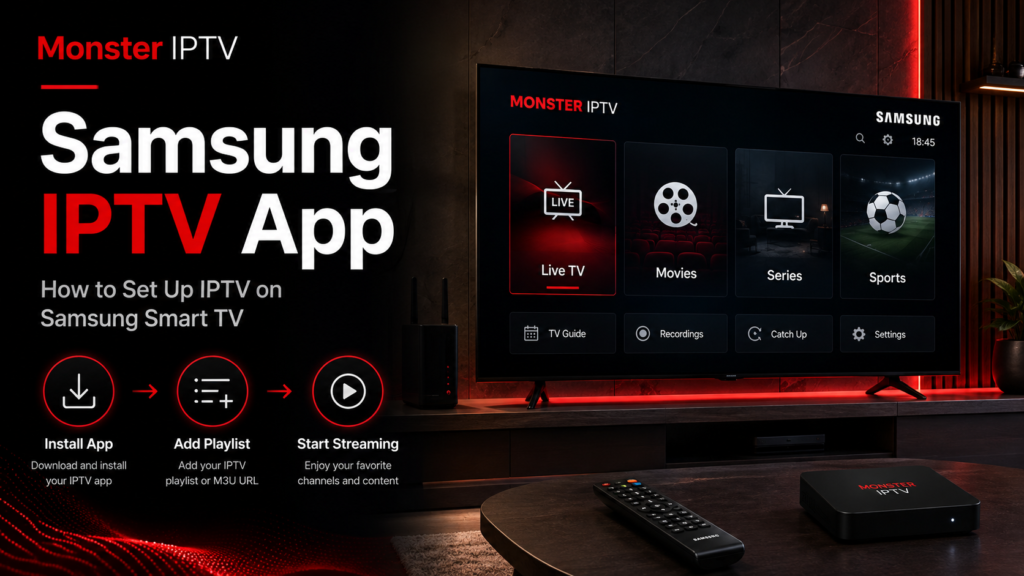
Using a Samsung IPTV app is one of the simplest ways to watch internet TV directly on a compatible Samsung Smart TV without adding a separate streaming box. The basic process is straightforward: install a suitable IPTV player from your TV’s app section, enter the connection details provided by your IPTV service, then load your channels and EPG.
Samsung TVs use their own smart TV platform, so the setup is different from Android TV or a Firestick. App availability can also vary by TV model, software version, and Swedish region. This guide explains the process and what to check when an IPTV app does not appear or work as expected.
How IPTV Works on a Samsung Smart TV
An IPTV app is primarily a player. The app itself does not automatically provide live TV, movies, series, Swedish channels, or Nordic channels.
You normally need two separate components:
- A compatible IPTV player installed on the Samsung TV
- Valid connection or playlist information from your IPTV service
Depending on the player, your service may provide an M3U playlist URL, Xtream-style login information, or another supported configuration method. Once those details are added, the app can organize available content and, where supported, display an Electronic Program Guide (EPG).
Samsung Sweden explains that apps can be searched for and installed directly through the TV interface. It also notes that app availability may vary by country, region, and model.
That regional difference matters when searching for an IPTV app Samsung users elsewhere recommend. An app visible on a TV in another country may not necessarily appear on your Swedish Samsung TV.
Which Samsung IPTV App Should You Use?
There is no single IPTV player that is automatically right for every Samsung television.
When choosing an app, focus on compatibility with both your TV and the login method supplied by your IPTV provider.
Useful features to check include:
- M3U playlist support
- Xtream-style login support
- EPG integration
- Favorites
- Search and channel categories
- Remote-friendly navigation
- Subtitle support where needed
- Regular application updates
Samsung’s current app catalog includes IPTV players that support formats such as M3U and, in some cases, Xtream-style playlist credentials, although availability is region-dependent.
Monster IPTV also provides a dedicated IBO Player Smart TV installation guide for users whose setup uses that player.
The important point is to choose a player based on compatibility, rather than downloading the first app with “IPTV” in its name.

How to Install an IPTV App on Samsung Smart TV
The exact menu design can differ slightly between Samsung TV generations, but on current Samsung smart TV software the general installation process is simple.
Step 1: Connect the TV to the Internet
Make sure your Samsung Smart TV is connected through Wi-Fi or Ethernet.
A stable connection is important for live TV because streaming requires continuous data transfer. If possible, avoid troubleshooting IPTV until you have confirmed that other streaming apps work normally on the TV.
Step 2: Open the App Search
Press the Home button on your Samsung remote.
Navigate to the apps or search area and search for the name of the IPTV player you want to use.
Samsung Sweden’s current instructions describe the process as opening Search, entering the app name, selecting it from the results, and choosing Install.
If the app does not appear, do not assume your TV is faulty. App availability can differ by country, region, model, and software environment.
Step 3: Install and Open the Player
Select the app and install it.
After installation, you can usually add it to the Home screen so that it is easier to open in the future.
At this stage, you have installed only the IPTV player. You still need to connect it to your IPTV subscription.
How to Connect IPTV to the Samsung App
Open your chosen IPTV application.
The next screen will depend on the player. Common setup methods include M3U playlists and account-based login details.
Using an M3U Playlist
If the app supports M3U, you may be asked to enter:
- A playlist name
- An M3U URL
- An EPG URL, if supplied separately
Enter the information exactly as provided. A missing character, extra space, or incomplete URL can prevent the playlist from loading.
Using Login Details
Some Samsung IPTV players support a login method where you enter:
- Username
- Password
- Server or portal URL
Again, these details normally come from the IPTV service rather than from the app developer.
Monster IPTV maintains additional IPTV installation instructions for different players and devices, so it is worth checking the matching guide before changing advanced settings.
Once the information is saved, restart or refresh the app if required. Your available channel categories, live TV, movies, series, and EPG can then load according to your subscription and the player’s capabilities.
Why Is My Samsung IPTV App Not Working?
Most Samsung IPTV problems fall into a few common categories.
The IPTV App Does Not Appear in Search
This may happen because the application is not available for your TV model, Samsung software version, or current region.
Samsung specifically states that app availability can vary by region.
Search for the exact app name rather than just “IPTV”. If it still does not appear, choose another player officially available through your TV instead of assuming instructions written for another country will apply to Sweden.
The Playlist Does Not Load
Check your M3U URL or account details carefully.
Common mistakes include:
- incorrect username or password
- incomplete server URL
- extra spaces
- expired or changed credentials
- selecting a login method your service does not use
If you are unsure which format to use, check the information supplied with your IPTV subscription.
Channels Load but Streaming Buffers
Buffering does not always mean there is a problem with the Samsung app.
Possible causes include:
- weak Wi-Fi
- congestion on the home network
- unstable broadband
- a distant Wi-Fi router
- temporary server or routing issues
- TV software that needs updating
Test another streaming service on the same television. If multiple apps have connection problems, investigate the network before repeatedly reinstalling the IPTV player.
An Ethernet connection can also help determine whether Wi-Fi is contributing to the issue.
The EPG Is Empty
An IPTV player and an EPG are related but separate components.
If channels work but programme information is missing, refresh the EPG inside the player if that option exists. Also confirm that your service supplies guide information in a format supported by the app.
Can You Use IPTV on Samsung Without an Extra Box?
In many cases, yes.
If your Samsung Smart TV offers a compatible IPTV player and the player supports the credentials supplied by your service, IPTV can run directly on the TV.
An external device may still be useful when:
- your preferred app is unavailable on Samsung
- the television is older
- you prefer an Android-based IPTV player
- the built-in Smart TV interface feels limited
- you need app features unavailable on your television
There is therefore no universal requirement to buy an IPTV box just because you own a Samsung TV.
What to Check Before Setting Up IPTV Samsung TV
Before starting, make sure you have:
- A Samsung Smart TV connected to the internet
- Access to the TV’s app section
- A compatible IPTV player
- Your IPTV login or M3U information
- EPG information if your setup uses a separate EPG URL
- A stable internet connection
For broader questions about subscriptions, apps, devices, and setup, you can also use the Monster IPTV FAQ.
FAQ
What is the best Samsung IPTV app?
There is no universal best option because availability and compatibility vary between Samsung models and regions. Choose a player available on your TV that supports the playlist or login format provided by your IPTV service.
Can I install an IPTV app directly on Samsung Smart TV?
Yes, when a compatible app is available for your Samsung TV. Samsung allows supported apps to be searched for and installed through its Smart TV interface. App availability can vary by model and region.
Does an IPTV app include channels?
Usually not. An IPTV player normally provides the interface and playback functionality. You still need compatible playlist or account information from a content provider.
Can I use M3U on Samsung TV?
Yes, if the IPTV player installed on your particular Samsung TV supports M3U playlists. Samsung’s app catalog includes players that advertise M3U support, but availability should be confirmed directly on your television.
Why can I not find the same IPTV app someone else uses?
Samsung app availability can vary according to region, TV model, and software environment. An app shown in a guide or available in another country may therefore not appear on your Swedish TV.
Conclusion
Setting up a Samsung IPTV app is mainly a matter of choosing a compatible player, installing it through the Samsung TV interface, and entering the correct playlist or login information. For users in Sweden, it is especially important to check the app directly on the television because Samsung notes that availability can vary by region and model. If you are preparing your Samsung TV for internet TV and want to review the service alongside its setup guidance, visit Monster IPTV.
