 Skip to main content
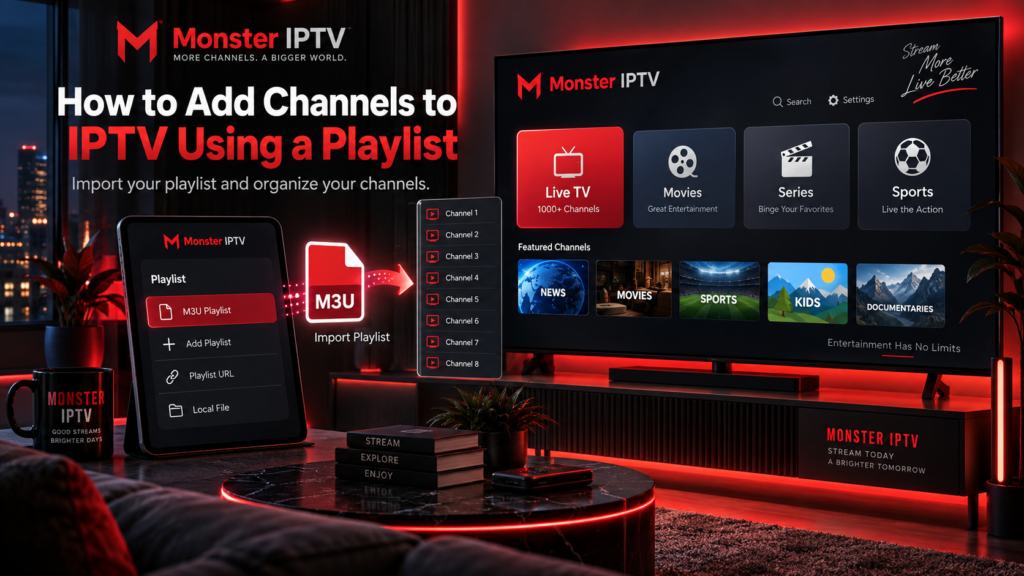
Learning how to add channels to IPTV starts with understanding how your IPTV player receives its channel list. Most players use an M3U playlist, a compatible account login, or a device-based playlist upload system.
If you already have an authorized M3U playlist, the usual process is simple: open your IPTV player, choose Add Playlist, enter the playlist URL or import the file, save it, and refresh the channel list.
However, adding a playlist is different from adding entirely new channels to a provider’s service. This guide explains both situations, including how to upload a playlist, organize channels, and troubleshoot missing entries.
What Do You Need to Add IPTV Channels?
Before starting, prepare the following:
- A compatible IPTV player
- An authorized M3U playlist URL or file
- A stable internet connection
- An IPTV account, if required
- An EPG source, if programme information is provided separately
An IPTV player does not necessarily include television channels.
For example, Smart IPTV’s official website identifies the application as a media player that does not include channels. Users must supply their own content sources.
siptv.app
If you have not installed a player yet, consult the Monster IPTV installation guides for device-specific setup information.
How Does an IPTV Playlist Add Channels?
An IPTV playlist is a file or URL containing information about television streams.
A typical M3U playlist may include:
- Channel names
- Stream addresses
- Channel logos
- Categories
- Channel identifiers
- Programme-guide references
When you import the playlist, your IPTV player reads its entries and displays the available channels.
Kodi’s official IPTV Simple Client documentation confirms that M3U playlists can contain channel names, logos, numbers, groups, and identifiers used to match EPG information.
Official Kodi Wiki
The playlist does not create the television streams. It provides the information needed to access the streams supplied by an authorized source.
How to Add Channels to IPTV Using an M3U URL
An M3U URL is one of the most common ways to import an existing channel list.
The exact menu names depend on your player, but the general process is similar.
Step 1: Open Your IPTV Player
Launch the application on your Smart TV, Android TV, Firestick, phone, or computer.
Find the playlist management section.
Depending on the application, it may be labelled:
- Add Playlist
- Playlist Manager
- Add M3U
- Add URL
- Settings
If your application already contains a playlist, look for an option to add another one rather than deleting the existing configuration.
Step 2: Select the M3U Option
Choose the option for importing a remote playlist or M3U URL.
Make sure you select the correct connection type.
An M3U URL and an Xtream-style login are different configuration methods. If you received a server address, username, and password instead of a playlist URL, use the corresponding login option.
Step 3: Enter Your Playlist URL
Copy the complete M3U address supplied by your authorized source.
Paste it into the URL field.
Avoid adding spaces, removing characters, or changing the address.
Some playlist URLs include account-specific credentials or access tokens. Treat these addresses as private information and do not share them publicly.
Step 4: Save and Load the Playlist
Give the playlist a recognizable name if the application requests one.
Select Save, Add, or the equivalent confirmation button.
Allow the application to retrieve the channel information.
Once the playlist loads successfully, its available channels should appear in the player’s live TV section.
If the list remains empty, refresh it before attempting a complete reinstallation.
How to Upload My IPTV Playlist From a File
Some users receive a downloadable M3U file rather than a URL.
In this situation, the procedure depends on whether the IPTV application supports local file imports.
Follow these steps:
- Download the authorized M3U file.
- Open your IPTV player.
- Find the playlist import option.
- Select Local File or Upload File, if supported.
- Locate the downloaded M3U file.
- Import it and save the configuration.
Not every application supports local uploads.
Some applications accept only URLs or account-based connections, while others use an external playlist management website.
If your player does not support local files, check its official documentation before trying to convert the playlist.

How to Upload a Playlist to Smart IPTV
Some Smart TV applications use a device-based upload process instead of requiring users to type long playlist URLs with their television remote.
Smart IPTV is one example.
The general procedure involves:
- Opening the Smart IPTV application.
- Finding the device identifier displayed by the app.
- Opening the application’s official playlist management website on a phone or computer.
- Entering the required device identifier.
- Uploading the M3U file or submitting its URL.
- Saving the configuration.
- Reloading the application on the television.
Smart IPTV’s official documentation describes playlist uploads, external playlist URLs, playlist refreshes, and channel management features.
siptv.app
Use the exact upload address displayed by your installed application. Different IPTV players may use different websites and device identifiers.
Never enter your playlist credentials into an unrelated upload website.
Can You Manually Add Individual IPTV Channels?
This depends on the application and the permissions you have.
There are two different situations.
If you are a viewer: You can normally import a playlist containing channels supplied by your provider. You may also be able to add another authorized playlist, depending on your player.
If you manage your own IPTV platform: You may have administrative tools for adding individual channels and their stream addresses.
For example, Infomir’s Ministra TV platform documentation describes an administrative process for creating a channel, entering its name and number, adding a streaming URL, and saving the configuration.
Infomir Documentation
That is a platform administration function, not a feature available to every IPTV subscriber.
Adding a channel name manually does not grant access to a stream. You still need a working source that you are authorized to use.
How to Add New Channels to an Existing Playlist
If you manage your own M3U playlist and have permission to access the streams, you may be able to edit the file.
An M3U playlist can contain individual entries with channel information followed by stream addresses.
You can add an authorized stream to a local playlist, save the modified file, and import the updated version into a compatible player.
However, do not assume you can edit a provider-managed playlist directly.
If your IPTV service controls the playlist remotely, new channels generally need to be added by the provider. Editing your own downloaded copy does not change the provider’s original channel lineup.
Before editing anything, save a backup of the existing file.
How to Organize IPTV Channels
Once the channel list is available, organizing it can make navigation much easier.
Look for these player features:
Favourites: Save regularly watched channels in a separate group.
Categories: Browse channels by genre, language, or another category provided by the playlist.
Channel ordering: Change the display order if your application supports customization.
Hidden groups: Hide categories that you do not need.
For viewers in Sweden, organizing Swedish channels, Nordic television, sports, news, and international content into useful groups can reduce unnecessary scrolling.
If you want to inspect the channels advertised by Monster IPTV rather than edit your own playlist, review the channel information page .
How to Update an IPTV Playlist
Channel lists can change over time.
A provider may update stream addresses, rename channels, or modify its available content.
If your player supports remote playlist updates, refreshing the playlist allows it to request the current information from the source.
The general process is:
- Open the IPTV player’s settings.
- Find the playlist management section.
- Select the existing playlist.
- Choose Update or Refresh.
- Wait for the channel list to reload.
Some applications can update remote playlists automatically.
A local M3U file usually requires you to replace or reimport it when the underlying list changes.
If your subscription uses account-based login, the application may retrieve the updated channel list through that connection.
How to Add EPG Information to IPTV Channels
EPG stands for Electronic Program Guide.
It displays programme schedules, including what is currently playing and what comes next.
An M3U playlist and an EPG are separate sources of information.
Kodi’s official documentation explains how M3U channel identifiers can be matched to corresponding XMLTV programme-guide entries.
Official Kodi Wiki
If your channels play but no programme information appears, check whether your player requires a separate EPG URL.
You should also verify that the guide matches the correct channels.
For viewers in Sweden, confirm that the device uses the correct local time zone so programme schedules are displayed accurately.
Why Are My IPTV Channels Not Showing?
If you upload a playlist but cannot see the channels, check the following possibilities.
Incorrect M3U URL
Verify that the entire playlist address has been copied correctly.
If the URL contains credentials, make sure none of its characters have been changed.
Playlist Has Not Refreshed
Some applications continue displaying cached information.
Use the refresh option or restart the application.
Incorrect Import Method
If you have an M3U file, do not paste its local file path into a field that expects a remote URL.
Likewise, use the appropriate account-login option when you receive separate credentials.
Individual Channels Are Missing
A playlist may load correctly even when specific channels are absent.
Check whether the missing channel is included in the current source playlist.
If it is not, ask the authorized source about its availability.
Channels Appear but Do Not Play
A successful playlist import does not guarantee that every stream will play.
Test several channels to determine whether the issue affects one stream or the entire setup.
For additional connection and configuration questions, consult the Monster IPTV FAQ .
FAQ
How do I add channels to IPTV?
Import an authorized M3U playlist, use a supported account login, or add another playlist through your IPTV player’s settings.
How do I upload my IPTV playlist?
Open the player’s playlist management section and import your M3U file or URL. Some Smart TV applications require an upload through their official device-management website.
Can I add channels without an IPTV subscription?
You can add streams that you are authorized to access, including appropriately licensed public streams. A playlist or IPTV player does not itself provide access rights.
Can I add one channel without replacing my playlist?
Some players and custom M3U files support this, but provider-managed playlists may require the provider to make changes.
Why are some channels missing after uploading a playlist?
Possible causes include an outdated playlist, hidden categories, a failed refresh, or channels that are no longer included in the source.
Does adding an M3U playlist automatically add an EPG?
Not necessarily. Some setups retrieve guide information automatically, while others require a separate XMLTV source.
Conclusion
Understanding how to add channels to IPTV is mainly about choosing the correct playlist method. You can import an M3U URL, upload a compatible file, use account-based login, or manage individual streams if you have access to the appropriate administrative tools. Keep playlists updated, organize channels using favourites and categories, and troubleshoot the playlist separately from the EPG and video source. For IPTV setup information and viewing options for users in Sweden, visit Monster IPTV .
