 Skip to main content

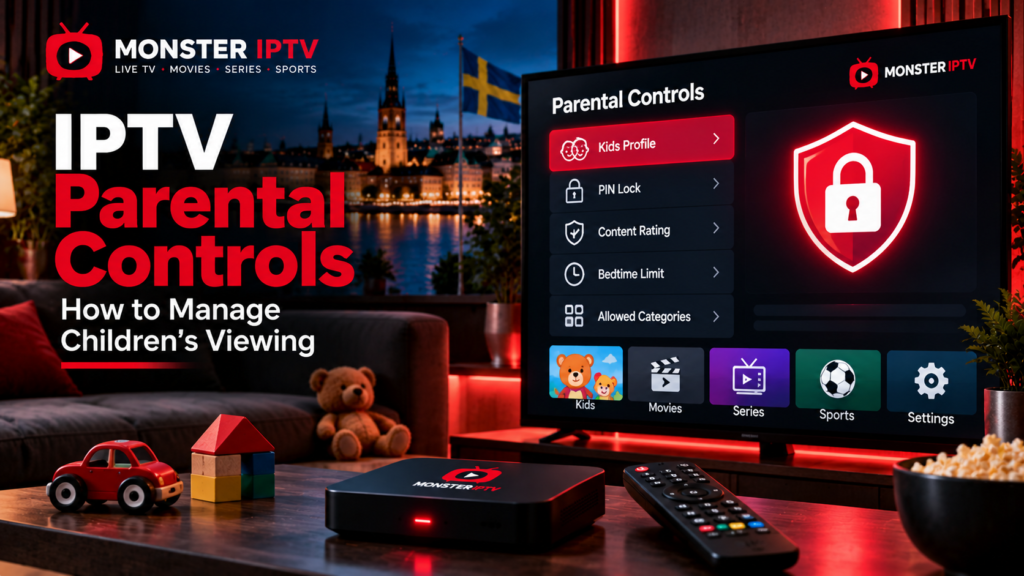
IPTV parental controls can help parents manage what children can access, which IPTV apps they can open, how long they can watch, and whether restricted channels or content require a PIN.
The most reliable family setup uses more than one layer of protection. An IPTV player’s own PIN or channel lock can control content inside the app, while Google TV, Fire TV, Apple TV, or a Smart TV can provide additional controls at device level.
For families in Sweden, parental controls should be combined with age-appropriate viewing choices and clear household rules rather than treated as a complete replacement for supervision.
How Do IPTV Parental Controls Work?
Parental control features vary between IPTV players and devices.
Depending on the app, you may be able to:
- Lock selected channel categories
- Protect settings with a PIN
- Hide specific channels
- Restrict movies or series
- Protect adult sections
- Prevent children from changing playlists
- Require a PIN before opening sensitive content
- Create separate profiles
- Limit screen time
Not every IPTV app offers all of these options.
Some players only protect settings, while others allow individual channels or groups to be locked. Device-level parental controls may also apply differently to third-party IPTV applications.
This makes it important to check both the IPTV player and the television or streaming device.
Use a PIN Inside the IPTV App
A PIN is one of the simplest ways to protect IPTV content.
If your player supports parental controls, look for menu options such as:
- Parental Control
- Content Lock
- Channel Lock
- Restricted Groups
- Adult Content
- Security
- PIN Protection
Choose a PIN that children cannot easily guess.
Avoid simple combinations such as:
- 0000
- 1111
- 1234
- Birth years
- House numbers
If the app allows it, use the PIN to protect not only channels but also settings. Otherwise, a child may be able to remove a blocked category or add another playlist.
For help finding settings on common television platforms, see the Monster IPTV installation guides.
Hide Channels Children Do Not Need
A useful IPTV for kids setup does not necessarily need to show the full channel list.
If the player supports channel management, consider hiding categories that children do not use.
You may want to create a simpler viewing environment containing:
- Children’s channels
- Educational programmes
- Family films
- Age-appropriate entertainment
- Selected Swedish channels
This also makes the IPTV interface easier for younger children to navigate.
However, hiding a channel is not always the same as locking it. If the IPTV app offers both options, use a PIN lock for content that should not be accessible at all.
Google TV Parental Controls
Google TV includes family features that can add another layer of control around IPTV apps.
Google currently allows parents to create kids profiles on supported Google TV devices. Parents can choose which apps children can use, apply content restrictions, set daily viewing limits, create bedtime schedules, and lock the child’s profile. Availability can vary by device and region.
For IPTV, one particularly useful option is controlling whether the IPTV player appears in the child’s profile.
A parent could, for example:
- Create a child’s Google TV profile.
- Allow only approved applications.
- Add a daily screen-time limit.
- Enable the kids profile lock.
- Configure parental controls inside the IPTV app separately.
There is an important limitation.
Google states that Google TV’s content restrictions do not necessarily control recommendations or search results supplied directly by third-party apps.
That means an IPTV app’s own parental controls remain important.
Fire TV Parental Controls
Fire TV devices also provide parental control features.
Amazon allows parental controls to be managed from Fire TV settings and supports age-related restrictions within its Fire TV environment. Fire TV profiles can also provide separate viewing preferences.
A family using IPTV on Firestick should therefore check two separate areas:
Fire TV settings: Protect purchases, profiles, and access where supported.
IPTV player settings: Lock channels, categories, playlists, or application settings where the player provides these controls.
Do not assume that enabling a Fire TV PIN automatically filters every programme inside every third-party IPTV app.
App-level protection may still be required.
Apple TV Restrictions and IPTV Apps
Apple TV provides device restrictions that can control purchases, apps, movies, television programmes, and other activities according to the options available on the device.
Apple currently allows users to enable Restrictions under Apple TV settings and protect them with a four-digit passcode.
However, Apple specifically notes that device restrictions may not apply to all content inside apps downloaded from the App Store. In those cases, parents should use the individual application’s own controls.
For IPTV on Apple TV, the strongest setup is therefore:
- Apple TV restrictions
- A protected adult profile
- IPTV app parental controls
- A separate PIN known only to adults
This layered approach reduces the chance of a child bypassing one control through another part of the device.

LG Smart TV Family Settings
LG webOS televisions can also provide family-oriented controls, although availability and menu names vary by model and country.
LG documents features such as Family Settings, viewing-time limits, screen-time information, and parental locks on supported televisions. Some models also allow apps and television functions to be locked.
For an LG IPTV setup, check both:
- The Safety or Family Settings menu on the television.
- The parental control section inside the IPTV player.
If your IPTV application does not provide sufficient controls, locking access to the entire app at television level may be a better option for younger children.
Set Screen-Time Limits as Well as Content Limits
Parental controls are not only about blocking adult content.
Screen time can also be managed.
Sweden’s Mediemyndigheten provides guidance for parents on using parental settings to create safer and more balanced digital habits. It also emphasizes that technical restrictions should be used in dialogue with children and with consideration for their age and circumstances.
Useful household rules might include:
- No television during homework
- A fixed viewing period after school
- No streaming after bedtime
- Longer viewing limits at weekends
- Adults approving new apps before installation
Google TV supports daily limits and bedtime schedules on kids profiles, while some LG models provide television usage limits. Other platforms may offer similar features.
Protect IPTV Settings From Changes
Many parents focus on blocking channels but forget about settings.
If children can access the configuration menu, they may be able to:
- Unhide a category
- Remove a PIN
- Add a playlist
- Change content sources
- Install another app
- Modify profile settings
When available, protect the IPTV player’s settings menu with a separate PIN.
You should also protect the television or streaming device account used to install new apps.
This is particularly useful on Android TV, Google TV, and Fire TV devices where multiple entertainment applications may be available.
Do Age Ratings Always Work With IPTV?
Not necessarily.
Age-based filtering depends on accurate metadata.
An IPTV player may receive programme information through an EPG, but an EPG does not always contain reliable age-rating data for every channel, programme, movie, or series.
Therefore, parents should not rely solely on automated age filters.
A practical approach is to combine:
- Age ratings where available
- Locked channel groups
- Hidden categories
- Kids profiles
- App restrictions
- Screen-time controls
For younger children, limiting the available channel list can be more predictable than depending only on programme metadata.
Create a Child-Friendly IPTV Setup
A simple setup can make IPTV easier to manage.
Consider the following configuration:
- Use a separate child profile where the device supports one.
- Allow only approved television and streaming apps.
- Hide unnecessary IPTV categories.
- PIN-lock restricted groups.
- Add children’s channels to favourites.
- Protect application settings.
- Configure screen-time limits.
- Keep the PIN private.
- Review the settings periodically.
If the provider changes its channel lineup, check whether new categories have appeared.
You can review the Monster IPTV channel information when checking available channel categories and viewing options.
Parental Controls Do Not Replace Supervision
Technical restrictions can reduce accidental access, but no system should be assumed to block every unsuitable programme.
Controls can fail because of:
- Incorrect EPG ratings
- New channels
- App updates
- Changed profiles
- New devices
- Forgotten settings
- Content available through another application
Mediemyndigheten’s Swedish guidance supports combining technical parental settings with communication between adults and children about digital media use.
This is especially relevant as children become older and use more devices independently.
FAQ
Can I put a PIN on IPTV?
Many IPTV players support PIN protection, but the available controls depend on the specific application. Check the player’s current settings.
Can I block individual IPTV channels?
Some players allow individual channels or entire categories to be hidden or PIN-protected. Others provide only basic settings protection.
Does Google TV have kids profiles?
Yes, on supported devices and in supported regions. Google TV kids profiles can control app access, content restrictions, daily viewing time, and bedtime.
Can I limit IPTV screen time?
Possibly. Screen-time controls may be available through the television, streaming device, operating system, or IPTV application.
Are IPTV parental controls based on age ratings?
Some are, but reliable filtering depends on accurate content and EPG metadata. Manual channel or category locks provide an additional layer.
Should children have access to the main IPTV profile?
For younger children, a separate kids profile or restricted app environment can make access easier to manage when the device supports it.
Conclusion
Effective IPTV parental controls use several layers rather than relying on a single setting. Parents can combine IPTV app PINs, hidden channel groups, kids profiles, device restrictions, screen-time limits, and protected settings to create a more manageable viewing environment. Because controls vary between Google TV, Fire TV, Apple TV, LG webOS, and individual IPTV players, always check the options available on your exact device and app. For more information about IPTV devices, setup, and viewing options for families in Sweden, visit Monster IPTV.
