 Skip to main content

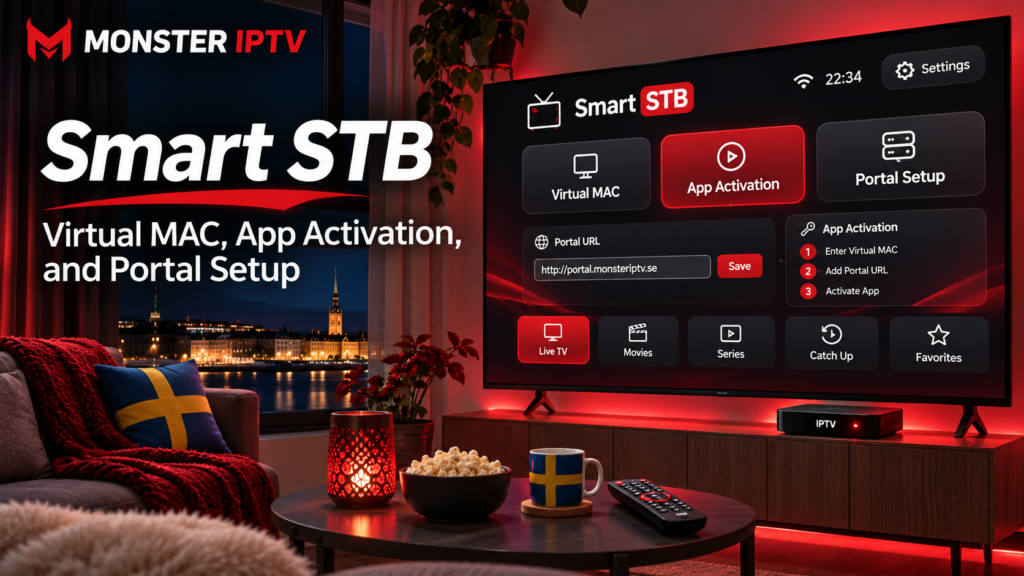
Smart STB is an IPTV player designed to reproduce the set-top-box style portal experience directly on compatible devices. Instead of connecting a physical MAG-style box, users can configure a portal, identify the app’s Virtual MAC address, and connect the application to a compatible IPTV service.
The most important part of Smart STB setup is understanding that the Virtual MAC and Software ID serve different purposes. The Virtual MAC normally identifies your device to the IPTV portal, while the Software ID is used by Smart STB for its own app licensing and activation.
This guide explains how those elements work, how to configure a portal, and what to check when Smart STB does not load correctly.
What Is Smart STB?
Smart STB is an application that acts as a software alternative to a traditional IPTV set-top box. The developer describes it as an app that connects users to third-party IPTV portals and does not itself provide TV channels, streams, or playlists. Smart STB therefore needs a separate compatible content source.
The official Smart STB website currently lists support across several platforms, including:
- Samsung Smart TV
- LG Smart TV
- Android TV
- Apple TV
- Fire TV
- Chromecast
- iOS
- Android
Actual compatibility can still depend on the specific device, operating system version, and app availability in the relevant app store. Swedish users should therefore check their device’s current app store before assuming Smart STB will be available on a particular television.
For broader app and device options, you can also review the Monster IPTV installation guides.
Smart STB Virtual MAC vs Software ID
This distinction causes much of the confusion during Smart STB activation.
Virtual MAC
The Virtual MAC is the address used by a compatible IPTV portal to recognize the Smart STB installation.
According to Smart STB’s own documentation, the Virtual MAC is normally the information that a third-party IPTV provider needs when enabling access to its portal.
You can generally find it inside:
Smart STB > Settings > System Settings > Device Info
The exact interface can change between app versions and platforms.
Software ID
The Software ID belongs to the Smart STB application itself.
Smart STB explains that this identifier is used for app licensing, managing a purchased license, and certain support procedures. It is not normally the identifier that your IPTV service uses to authorize the television.
A simple way to remember the difference is:
- Virtual MAC: IPTV portal access
- Software ID: Smart STB app licensing
Avoid sending screenshots containing these identifiers publicly. Treat portal details and account information as private configuration data.
How Smart STB Activation Works
Smart STB activation and IPTV subscription activation are separate processes.
The official Smart STB site currently offers a trial before users purchase an app license. It also clearly states that a Smart STB license does not include a television service or playlist. (Smart STB)
The general setup process is:
- Install and open Smart STB on your compatible device.
- Open the app’s device information section.
- Note the Software ID and Virtual MAC.
- Configure the portal supplied by your IPTV service.
- Make sure the IPTV service has registered the correct Virtual MAC.
- Activate or license the Smart STB application separately when required.
- Restart or reload the portal.
Do not assume that paying for the Smart STB application activates your IPTV subscription. They are two different services.
How to Find the Smart STB Virtual MAC
Open Smart STB and enter the application’s settings menu.
Smart STB’s current documentation directs users through System Settings and then Device Info, where installation-specific details are displayed.
This section can include information such as:
- device model
- device type
- Software ID
- app subscription or license status
- Virtual MAC
The Virtual MAC is the value normally associated with your IPTV portal account.
If your IPTV provider asks for your device identifier, confirm that they specifically need the Virtual MAC rather than guessing or sending every identifier shown on the screen.
How to Add a Portal to Smart STB
Smart STB is commonly used with Ministra or Stalker-style portals. The developer also states that external M3U sources can be used, although functionality may differ depending on the device and setup.
For a portal-based configuration, you will need a portal URL supplied by your authorized IPTV service.
A typical setup process looks like this:
- Open Smart STB.
- Enter the portal selection or settings menu.
- Open the portal configuration.
- Enable the portal you want to use.
- Enter a recognizable portal name.
- Enter the complete portal URL.
- Save your settings.
- Restart or reload the portal.
Enter the URL exactly as supplied. A missing path, incorrect character, unnecessary space, or incomplete address can stop the portal from loading.
If you are configuring Monster IPTV on another type of player, the general installation section may be more relevant than trying to force a portal configuration into an incompatible app.
Why the Correct Portal URL Matters
A portal URL is not always just a website homepage.
Smart STB’s support material explains that portal systems can use more specific paths. A shortened address that redirects elsewhere may not behave the same way as the direct portal URL on every device.
This means you should use the exact address supplied for your account rather than trying to shorten or modify it.
If Smart STB reaches a blank, black, grey, or white screen after “Loading Portal”, the developer recommends checking whether the portal URL is direct and correctly configured.
What Does “STB Blocked” Mean?
One of the most common Smart STB messages is:
Your STB is blocked. Call the provider.
Smart STB explains that this generally means the third-party portal has not allowed that Virtual MAC to connect. The Smart STB developer itself does not control the IPTV provider’s portal authorization. (Smart STB support)
Possible causes include:
- the Virtual MAC has not been activated
- the wrong Virtual MAC was supplied
- the portal account is inactive
- the Virtual MAC changed
- the same MAC is being used with another emulator
- the IPTV provider has blocked or restricted the account
If the portal was working previously, avoid immediately changing the Virtual MAC. Smart STB specifically warns that manually changing it can break portal access.

Should You Change the Virtual MAC?
Normally, no.
Smart STB’s official documentation labels manual Virtual MAC changes as not recommended because the existing MAC may already be registered with your IPTV provider.
Changing it creates a new identity from the portal’s point of view. The old subscription authorization may therefore stop matching the app.
Only change the Virtual MAC when you have a clear technical reason and your portal administrator or relevant support service has instructed you to do so.
This is particularly important if your existing Smart STB configuration is already associated with an active account.
Smart STB and M3U Playlists
Although Smart STB is strongly associated with portal-based connections, the official developer currently advertises external M3U support as well.
Portal and M3U configurations work differently.
A portal can provide a set-top-box style environment with categories and other server-controlled features. An M3U playlist, by comparison, primarily provides a list of stream locations and may require separate EPG information.
If your IPTV service gives you an M3U URL rather than a portal address, confirm which setup method is intended before entering credentials into Smart STB.
You can review available content separately through the Monster IPTV channel information. The player itself does not determine which channels are included in a subscription.
Troubleshooting Smart STB Portal Problems
If Smart STB fails after setup, check the configuration systematically.
Portal does not load
Confirm that the full portal URL is correct and has not been altered.
“STB blocked” appears
Check whether your IPTV provider has registered the exact Virtual MAC shown in Device Info.
Demo portal loads instead of your portal
Check the Smart STB license, Software ID, and selected portal configuration. A licensing problem and an IPTV portal problem are not necessarily the same issue.
App license works but IPTV does not
The Smart STB license only activates the application. It does not automatically activate your IPTV provider account.
IPTV works on another app but not Smart STB
Confirm that the service actually supports the portal method you are trying to use. Do not assume that credentials designed for an M3U or Xtream-based player can automatically be entered into a Stalker-style portal.
For broader connection and account questions, the Monster IPTV FAQ provides additional troubleshooting information.
Smart STB for IPTV Users in Sweden
For users in Sweden, the setup process is essentially the same as elsewhere, but your device platform and IPTV source still matter.
Samsung and LG televisions may have different app ecosystems from Android TV, Apple TV, or Fire TV devices. App availability can also change over time, so always confirm Smart STB availability directly through the device’s official store.
Smart STB should also be considered separately from the legality of the content being streamed. An IPTV player is simply software. Whether particular television streams may legally be accessed depends on the rights attached to the service and content source.
Use IPTV subscriptions and portal credentials only where you are authorized to access the supplied content.
FAQ
What is a Virtual MAC in Smart STB?
The Virtual MAC is an identifier used by compatible IPTV portals to recognize your Smart STB installation. It is normally found in the Device Info section.
Is the Software ID the same as the Virtual MAC?
No. The Software ID is used for Smart STB licensing, while the Virtual MAC is generally used by the third-party IPTV portal.
Does Smart STB include IPTV channels?
No. Smart STB states that it does not provide TV services, streams, or playlists. You need your own compatible content source.
Can Smart STB use M3U?
Yes. Smart STB currently lists external M3U support, although its documentation notes that portal-based functionality can provide a different experience depending on the device.
Why does Smart STB say my STB is blocked?
The message normally indicates that the IPTV portal has not authorized the Virtual MAC or has restricted the account. Verify the MAC with your IPTV provider before changing app settings.
Conclusion
Smart STB setup becomes much easier once you separate its three main components: the Software ID licenses the application, the Virtual MAC identifies the device to the IPTV portal, and the portal URL connects the app to the compatible content service. Enter each value carefully, avoid changing the Virtual MAC unnecessarily, and troubleshoot portal authorization separately from app licensing. If you need compatible IPTV access and setup information for viewers in Sweden, you can explore Monster IPTV.
