 Skip to main content

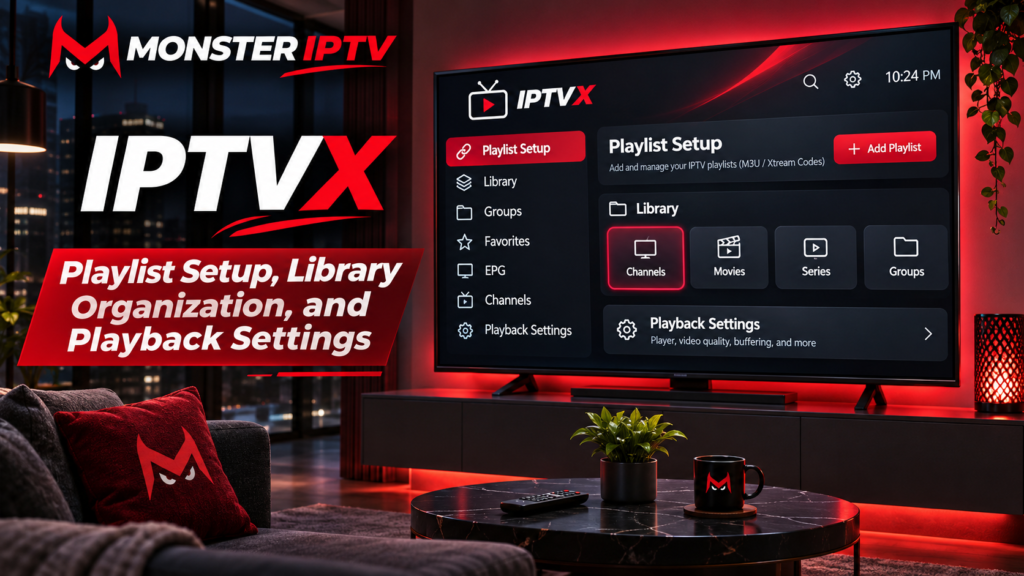
IPTVX is an IPTV player designed to turn playlists into an organized interface for live TV, movies, series, EPG data, favourites, and other personal media. For viewers in Sweden, it is particularly relevant if you want a polished way to manage a large IPTV playlist instead of browsing a basic channel list.
The important distinction is that IPTVX is a player, not an IPTV subscription. It does not supply Swedish channels, Nordic channels, sports, movies, or series by itself. You need your own compatible and legally authorized content source.
This guide explains IPTVX setup, how to add a playlist, organize your library, configure the TV guide, and adjust playback options.
What Is IPTVX?
IPTVX is a multiplatform IPTV player that can organize live television and on-demand content from compatible sources.
According to the official IPTVX website, the current platform supports Apple devices as well as Android and compatible Fire OS devices. The Swedish App Store specifically lists IPTVX for iPhone, iPad, and Apple TV.
IPTVX supports common IPTV connection methods including:
- Xtream API
- M3U and M3U8 playlists
- EPG data
- multiple playlists
- live TV
- movies and series
- subtitles
- favourites
- Picture in Picture
- AirPlay
- library synchronization on supported devices
If you are still deciding which type of IPTV application suits your hardware, Monster IPTV’s installation guides provide broader device-specific guidance.
IPTVX Setup: What You Need Before Starting
Before adding anything to IPTVX, prepare the information supplied by your IPTV service or your own media source.
For a typical IPTV setup, this may be either:
Xtream-style login
- Server or portal URL
- Username
- Password
M3U setup
- M3U or M3U8 playlist URL
- Optional EPG or XMLTV URL
Keep your IPTV login details private. A playlist URL can contain credentials, so avoid posting it in public forums, screenshots, support groups, or social media.
You should also confirm that the playlist comes from a source you are entitled to use. IPTVX itself does not provide the television content loaded into the player.
How to Add an IPTVX Playlist
The exact menu wording can change as IPTVX is updated, but the general process is straightforward.
Open IPTVX and look for the option to create or add a playlist. Give the playlist a recognizable name, especially if you plan to manage more than one source.
Using Xtream Credentials
If your IPTV service provides a server URL, username, and password, select the Xtream or corresponding API login option.
Enter:
- A name for the playlist
- The server address
- Your username
- Your password
- EPG information if your configuration requires it
Check the server address carefully. Missing the protocol, entering the wrong port, adding an unwanted space, or typing a password incorrectly can prevent the playlist from loading.
Once saved, IPTVX can retrieve the categories and media supplied by that account.
Using an M3U Playlist
If you receive an M3U URL instead, select the M3U playlist option and paste the complete URL.
An M3U playlist essentially tells the application where available streams are located. Depending on the source, you may need to add a separate EPG URL for programme information.
If the playlist imports successfully but the programme guide remains empty, investigate the EPG configuration separately rather than immediately assuming playback is broken.
Organizing a Large IPTVX Library
Playlist organization becomes important when an account contains many live channel groups, movies, series, or regional categories.
IPTVX currently includes tools for managing categories and favourites, including category ordering, custom favourite ordering, search, and other library-management features.
A practical setup for viewers in Sweden is to prioritize the categories you actually use.
For example, you might keep:
- Swedish channels
- Nordic channels
- sports
- news
- movies
- children’s content
- international channels
near the top while moving rarely used groups lower in the interface.
Creating a smaller favourites list is often even more useful. Instead of repeatedly browsing a large channel lineup, add the channels you watch regularly to favourites.
If channel availability matters when choosing your subscription, review the published channel information separately from the IPTV player itself. The app organizes the source you give it, but it cannot add channels that are not present in that source.
Setting Up the EPG in IPTVX
EPG stands for Electronic Program Guide. It provides programme names, schedules, start times, and other television-guide information.
The Swedish App Store listing states that IPTVX supports an EPG grid, automatic EPG discovery when suitable information is available from the server, and manually supplied EPG URLs.
If your live channels work but the guide does not, check:
- whether your provider supplies EPG information
- whether the correct EPG source is assigned
- whether channel names match the guide data
- whether the guide needs refreshing
- whether the problem affects one category or the entire playlist
Do not confuse EPG failure with video failure. A stream can play correctly while its programme information is missing.

Useful IPTVX Playback Settings
After importing your IPTVX playlist, spend a few minutes adjusting playback rather than leaving every option unchanged.
Current IPTVX features include multiple playback-related options such as Picture in Picture, AirPlay, subtitle support, audio-track selection, playback queues, and internal player controls.
Subtitles and Audio Tracks
For movies, series, or international channels, check the available subtitle and audio tracks during playback.
IPTVX supports subtitles and external subtitles, but what is actually available depends on the media source.
For Swedish viewers, this can be useful when a title contains several Nordic or international language tracks.
Picture in Picture
Picture in Picture is useful on compatible phones and tablets when you want the stream to continue in a smaller window while using another application.
AirPlay
Apple users can use supported AirPlay functionality to send compatible video or audio to another Apple-compatible display or device.
For regular living-room viewing, however, installing IPTVX directly on a supported Apple TV can provide a more TV-focused experience than repeatedly casting from a phone.
Does IPTVX Improve Streaming Quality?
IPTVX can influence how a stream is decoded and played, but changing the player cannot repair a poor source or unstable internet connection.
If you experience buffering, freezing, or slow loading, consider several possible causes:
- Wi-Fi signal strength
- network congestion
- router performance
- device performance
- stream bitrate
- source-server conditions
- playback compatibility
- ISP or routing problems
A useful test is to play the same authorized stream on the same network using another compatible player.
If one player has trouble while another works normally, the playback configuration may be involved. If every application has the same problem, investigate the connection or source instead.
For general troubleshooting questions, the Monster IPTV FAQ can help you separate player problems from broader IPTV or network issues.
IPTVX on iPhone, iPad, Apple TV, Android and Fire OS
IPTVX was strongly associated with Apple’s ecosystem, and the current Swedish App Store still lists versions for iPhone, iPad, and Apple TV. The developer’s current website now also presents IPTVX for Android and compatible Fire OS devices.
This matters because older tutorials may describe IPTVX as an Apple-only application.
Always verify compatibility using the current official store or IPTVX website before following an older installation guide.
On Smart TVs that use other operating systems, such as some Samsung Tizen or LG webOS models, a different IPTV player may still be more appropriate.
Common IPTVX Problems
The playlist does not load
Recheck the server URL, username, password, or M3U address. Pay particular attention to accidental spaces and incorrect ports.
Channels load but there is no EPG
The playlist and guide are separate components. Check whether an EPG source is available and correctly assigned.
Some channels play and others do not
This can point to an individual stream or source issue rather than a complete IPTVX configuration failure.
Categories are difficult to navigate
Use favourites and category-management tools to reduce the amount of content you need to browse regularly.
The app works on one device but not another
Check the operating system, app version, account configuration, and whether the same playlist format is supported on the second device.
FAQ
Does IPTVX provide IPTV channels?
No. IPTVX describes itself as a player for content supplied by the user. Installing the app alone does not provide Swedish channels or an IPTV subscription.
Can IPTVX use an M3U playlist?
Yes. The current Swedish App Store listing states that IPTVX supports M3U and M3U8 sources as well as the Xtream API.
Can I organize channels in IPTVX?
Yes. IPTVX currently provides category-management and favourite-ordering tools that can make large playlists easier to navigate.
Is IPTVX available on Apple TV in Sweden?
Yes. IPTVX is currently listed for Apple TV in Sweden’s App Store, alongside iPhone and iPad versions.
Conclusion
IPTVX is most useful when you treat it as the interface between your device and your own compatible IPTV playlist. Start by choosing the correct Xtream or M3U connection method, then organize categories and favourites, confirm the EPG, and adjust subtitles and playback features to suit how you watch television. If you need a compatible IPTV source or want to compare setup information for viewers in Sweden, you can explore Monster IPTV.
