 Skip to main content

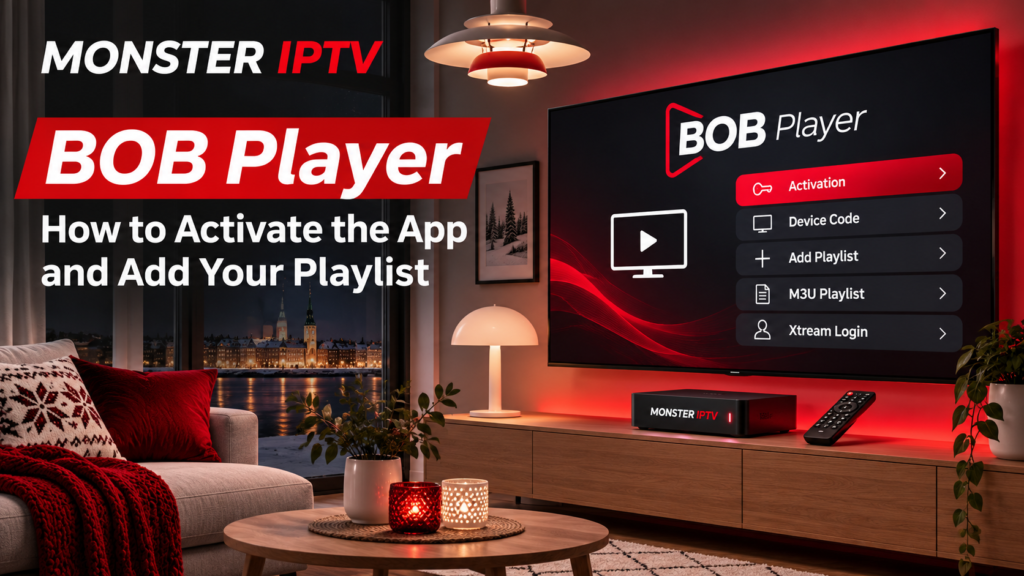
BOB Player is a media player that can load compatible IPTV playlists on supported televisions and streaming devices. The app itself does not provide TV channels or an IPTV subscription. Instead, you install the player, identify your device using the MAC address and Device Key shown in the app, then connect a playlist that you are authorised to use.
For viewers in Sweden using a Samsung TV, LG TV, Android-based device, or another supported platform, the most important part of the setup is understanding the difference between installing BOB Player, activating the player, and adding your actual playlist.
This guide explains the process step by step and covers the most common problems that can prevent a playlist from loading.
What Is BOB Player?
BOB Player is an IPTV and media player application. According to the official BOB Player website, the application does not include channels or playlists and does not sell IPTV subscriptions.
That distinction is important.
Installing BOB Player gives you the software needed to organise and play compatible media sources. You must separately have valid playlist or account information from a service you are entitled to use.
In practice, the setup involves three different elements:
- BOB Player installed on your device
- BOB Player activation or device registration
- Your compatible IPTV playlist or account details
If one of these parts is missing, the app will not automatically display live TV simply because it has been installed.
How BOB Player Activation Works
When you first open BOB Player, the application displays identification details for that installation.
The official device login currently asks for:
- Device MAC Address
- Device Key
These details allow BOB Player’s playlist-management system to identify the correct television or app installation.
The basic BOB Player activation workflow is:
- Install and open BOB Player.
- Write down the MAC address shown inside the app.
- Write down the Device Key.
- Open the official BOB Player management page on a phone or computer.
- Enter the MAC address and Device Key.
- Log in to manage the device.
- Add your compatible playlist.
- Save the configuration.
- Restart or refresh BOB Player on the television.
The exact interface can change, so use the current official BOB Player portal rather than relying on screenshots from old guides.
Use the MAC Address Shown in BOB Player
One common setup mistake is using the wrong MAC address.
A Smart TV can have different network addresses for Wi-Fi and Ethernet. BOB Player’s official support information notes that changing the connection type can result in a different MAC being used.
For example, you might initially configure the television while connected by Wi-Fi and later switch to an Ethernet cable.
If the MAC displayed by BOB Player changes, the playlist may still be connected to the previous identifier.
For playlist management, use the MAC address displayed inside BOB Player, not an address copied randomly from the television’s general network settings.
Always compare it character by character before troubleshooting anything else.
How to Add a BOB Player Playlist
Once you have successfully logged in to the device-management page, you can connect your playlist.
The exact fields depend on the playlist format supported by the current BOB Player interface.
You may be asked for information such as:
- playlist name
- M3U URL
- server or host address
- username
- password
Only enter details supplied for a playlist you are authorised to use.
After entering the required information:
- Save the playlist.
- Return to BOB Player on your TV or device.
- Restart the application or use its refresh option.
- Allow the playlist to load.
- Check whether your live TV categories and other available sections appear.
If you are also configuring the IPTV service itself, Monster IPTV provides separate IPTV installation guides for different devices and players.
BOB Player Does Not Include Channels
This point causes considerable confusion.
BOB Player is a player, not a television package.
The developer explicitly states that no channels or playlists are included with the application. Activating the software therefore does not automatically give you:
- Swedish channels
- Nordic channels
- sports
- films
- series
- an M3U playlist
- IPTV account credentials
Those come from the media source or television service you use separately.
This is similar to installing a media player on a computer. The player provides the interface and playback system, while your media source determines what content is available.
BOB Player on Samsung and LG Smart TVs
BOB Player promotes versions for Smart TV platforms including Samsung Tizen and LG television systems.
If the application is available for your particular television, the normal Smart TV process is straightforward:
- Open the television’s app store.
- Search for BOB Player.
- Install the correct application.
- Launch it.
- Record the MAC address and Device Key shown on screen.
- Complete device and playlist configuration using the official management portal.
Availability can depend on the specific television model, operating system, country store, and current app distribution.
Do not assume every Samsung or LG television supports the same version simply because it is from the same manufacturer.
BOB Player on Android and Other Devices
The official BOB Player site also references Android and iOS applications.
The basic setup concept remains similar regardless of the platform:
- install the official player
- open the app
- identify the device
- connect the playlist
- refresh the application
However, interfaces can differ between Smart TV, Android, mobile, and other versions.
A setting shown in a Samsung tutorial may therefore be located somewhere else on an Android TV device.
For general device troubleshooting, the Monster IPTV FAQ can help separate app-specific issues from internet connection or IPTV account problems.

Why Is My BOB Player Playlist Not Loading?
Several problems can prevent a playlist from appearing.
Incorrect MAC Address
Check that the MAC address entered on the management website exactly matches the one currently displayed inside BOB Player.
If you recently switched between Wi-Fi and Ethernet, check it again.
Incorrect Device Key
The Device Key is also required by the official device login.
Entering the correct MAC with an incorrect Device Key can prevent you from managing the intended installation.
Playlist Details Were Entered Incorrectly
Check your M3U URL, host address, username, and password carefully.
A single incorrect character can prevent the player from retrieving content.
It is usually better to copy and paste credentials rather than typing a long URL manually.
The Playlist Source Is Unavailable
BOB Player retrieves playlist information from the source you configured.
If that source is temporarily unavailable, the app may open normally while the channels fail to load.
The official BOB Player support information also notes that startup delays can occur while the player is loading a list from its source.
Internet Connection Problems
Before changing the playlist configuration, make sure the television itself has internet access.
Test another streaming application or open a network test if your television provides one.
If nothing online works, troubleshoot the network first.
Unsupported Stream Format
A playlist can work on one device but fail on another because televisions and media players do not necessarily support identical media formats and codecs.
BOB Player’s own support documentation highlights this possibility, particularly with different Smart TV models.
If the playlist loads but one particular stream does not play, the issue may therefore involve media compatibility rather than playlist activation.
Why Does the BOB Player MAC Address Change?
BOB Player states that televisions can use different MAC addresses for Wi-Fi and Ethernet.
This means switching your television from wireless networking to a wired Ethernet connection can cause a different MAC to appear in the player.
If that happens:
- Open BOB Player.
- Check the current MAC.
- Compare it with the address registered on the management portal.
- Use the currently displayed identifier when configuring the app.
This is especially important if the application worked previously and stopped displaying the playlist after a network change.
Does BOB Player Support EPG?
The BOB Player support page explains that the app can work with EPG information when the playlist or service provides suitable EPG data.
EPG stands for Electronic Programme Guide.
It can display information such as:
- current programme
- upcoming programme
- programme times
- channel schedules
The player cannot create missing programme data by itself. If your live channels work but the programme guide is empty, check whether your source includes properly configured EPG information.
BOB Player vs an IPTV Subscription
The player and subscription serve different purposes.
BOB Player: provides the playback interface and playlist management.
IPTV subscription or authorised media source: provides the actual stream information and available content.
Keeping this distinction clear makes troubleshooting much easier.
If the app cannot open, investigate the player or device.
If the playlist cannot be added, inspect the credentials and configuration.
If the playlist appears but specific content is unavailable, investigate the media source or stream.
FAQ About BOB Player
Is BOB Player an IPTV provider?
No. The official BOB Player website states that it is a general media player and does not provide playlists or IPTV subscriptions.
What do I need for BOB Player activation?
The official management login currently uses the Device MAC Address and Device Key displayed by the application.
Can I add an M3U playlist to BOB Player?
BOB Player is designed to work with compatible playlist sources. The exact options available should be checked in the current official management interface.
Why did my BOB Player MAC change?
Switching between Wi-Fi and Ethernet can result in a different MAC address being used. Check the identifier currently shown inside the app.
Does activating BOB Player give me TV channels?
No. Player activation and television content are separate. You need your own compatible, authorised media source.
Why does BOB Player work on one TV but not another?
Different television models can support different media formats, operating-system versions, and app versions. Compatibility can therefore vary even when the same playlist is used.
Set Up BOB Player in the Right Order
The simplest way to configure BOB Player is to handle each part separately: install the official application, record the MAC address and Device Key, register the correct device, add your authorised playlist, and then refresh the player.
If something fails, avoid changing every setting at once. First verify the device identifiers, then the playlist details, internet connection, and stream compatibility. If you are preparing BOB Player for an IPTV setup in Sweden and need service or device information alongside the player configuration, visit Monster IPTV for current guidance.
