 Skip to main content

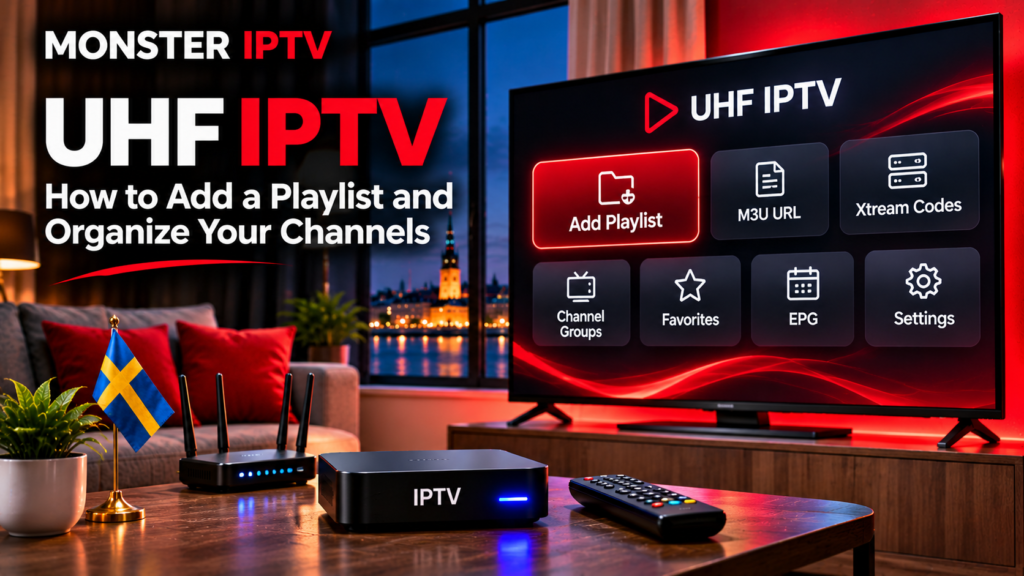
UHF IPTV is an IPTV and media player designed primarily for the Apple ecosystem, including iPhone, iPad, Apple TV, and compatible Macs. It lets you connect your own supported playlist or media source, then organize live TV, films, series, favourites, and programme-guide information inside one interface.
UHF itself does not provide television channels or an IPTV subscription. The developer describes UHF as a media player that works with user-supplied content and currently supports sources including M3U8, Xtream, Plex, Jellyfin, and Emby.
For IPTV users in Sweden, this makes UHF particularly relevant when Apple TV, iPhone, or iPad is already part of the home entertainment setup.
What Is UHF IPTV?
UHF, officially listed in Sweden’s App Store as UHF – Love your IPTV, is a player developed by Short Wavelength Applications SL. The Swedish App Store currently lists it for iPhone, iPad, and Apple TV, while the developer also promotes use across compatible Apple devices including Mac.
The distinction between player and content provider is important.
Installing UHF does not automatically give you:
- Swedish TV channels
- Nordic channels
- sports packages
- films or series
- an IPTV subscription
- an M3U playlist
- Xtream account details
Instead, you connect a compatible source that you are authorised to access.
UHF then provides the viewing and organisation interface.
What Playlist Types Does UHF Support?
UHF currently advertises support for several media-source formats and systems, including:
- M3U8
- Xtream
- Plex
- Jellyfin
- Emby
The official app listing and UHF website both confirm these source types.
For a traditional IPTV setup, the two most relevant choices are usually M3U8 and Xtream.
An M3U8 setup generally requires a playlist URL.
An Xtream-style setup normally uses information such as:
- server or host URL
- username
- password
- a name for the playlist
Use the exact details supplied for your authorised service rather than attempting to convert credentials manually.
How to Add a Playlist to UHF
The exact appearance of the app can change with updates, but the general UHF playlist setup is straightforward.
1. Install and Open UHF
Download UHF from the official App Store on your compatible Apple device.
Open the application and look for the option to add a playlist, source, or library.
If you are configuring IPTV for the first time, it can be easier to enter the playlist information on an iPhone or iPad before using the same setup on a television.
2. Choose the Correct Playlist Type
Select the source type that matches the information you have received.
For example:
M3U8: choose this when you have a compatible playlist URL.
Xtream: choose this when you have a server address together with a username and password.
Do not select one format simply because it sounds familiar. The login method needs to match the information supplied by your service.
3. Enter Your Details Carefully
Copy the required information rather than typing long URLs manually when possible.
Check for:
- missing characters
- accidental spaces
- incorrect username
- incorrect password
- incomplete server URL
A playlist can fail to load because of a single incorrect character.
4. Save and Let UHF Load the Source
Once the information has been entered, save the playlist.
UHF can then process the source and organise the available content into its interface.
Depending on the source, this may include live television, films, series, categories, and programme-guide information.
For broader IPTV configuration help, Monster IPTV also provides installation guides for different devices and players.

How to Organize Channels in UHF
Channel organisation is one of UHF’s more useful features.
The developer currently lists content-management tools that allow users to rename, reorder, merge, and favourite playlist content.
This can be particularly useful with a large channel lineup.
Instead of scrolling through every category whenever you want Swedish TV or sport, you can create a more practical viewing structure.
For example, you might organise favourites around:
- Swedish channels
- Nordic TV
- news
- sports
- films
- children’s programming
- frequently watched international channels
The exact organisation available depends on the information contained in your source and the current UHF version.
How to Add Channels to Favourites
If you regularly watch only a small part of your full playlist, favourites can make navigation much faster.
Find a channel you use frequently and select the favourite option in UHF. The app’s current feature set includes favourites as part of its playlist-management tools.
UHF has also added management tools for favourite lists, including options to rename, delete, and reorder them.
This means you can create a simpler personalised lineup without altering the original IPTV source.
For information about content categories available from Monster IPTV itself, use the separate channel information page.
How EPG Works in UHF
EPG stands for Electronic Programme Guide.
It provides schedule information that can include:
- programme titles
- start times
- end times
- current programmes
- upcoming programmes
UHF includes an EPG interface for compatible sources. The Swedish App Store listing describes a built-in television guide designed for navigating schedules.
However, installing UHF does not guarantee that every channel will have programme information.
The EPG data must exist in your playlist or associated source and be correctly matched to the relevant channels.
If channels play normally but the guide is empty, the problem may therefore be related to the EPG source rather than video playback.
UHF on Apple TV
Apple TV is one of the main devices supported by UHF.
The large-screen interface makes it suitable for browsing live television, programme information, films, and series with a remote rather than using a touchscreen.
UHF’s official website also lists features such as:
- EPG
- favourites and content management
- multiple audio tracks
- subtitles
- catch-up and timeshift support
- Picture-in-Picture
- global search
Some functionality depends on the source, device, or UHF feature tier.
If you are preparing an Apple TV specifically for IPTV, check both the application’s requirements and your IPTV account details before beginning setup.
Using UHF on iPhone and iPad
UHF is also available for iPhone and iPad through the Swedish App Store.
Mobile devices can be particularly convenient for playlist management because entering URLs, usernames, and passwords is usually easier with a touchscreen keyboard than with a TV remote.
They can also be useful for testing.
If a stream works on your iPhone but not on Apple TV using the same source, you have already narrowed the problem down to the device, app configuration, or playback environment rather than immediately assuming the playlist credentials are wrong.
AirPlay and Chromecast
UHF currently advertises both AirPlay and Chromecast functionality from supported devices.
This provides another option when you want to start playback on a mobile device and send compatible content to a larger screen.
However, casting introduces another layer to the setup. If direct playback works but casting does not, troubleshoot the casting connection separately rather than editing a playlist that already works correctly.
Make sure the relevant devices can communicate over the local network and follow the current UHF instructions for the selected casting method.
Why Is My UHF Playlist Not Loading?
A failed playlist does not automatically mean UHF itself is broken.
Check the following areas in order.
Verify Your Login Information
Check the server URL, username, password, or M3U8 address.
Copy them again from the original source if necessary.
Check the Internet Connection
Open another internet-based app on the device.
If other online services also fail, troubleshoot Wi-Fi or Ethernet before changing UHF settings.
Refresh the Playlist
If the playlist previously worked, refresh or reload the source.
Content providers can change categories, programme information, or other playlist data over time.
Check Whether the Source Is Reachable
UHF’s developer explains that content-loading and EPG problems can originate from the playlist server or network rather than the player itself. UHF now includes a Debug Mode under its general settings that can provide logs for troubleshooting connection and playlist-fetching problems.
Test Another Device
If you have UHF on both an iPhone and Apple TV, try the same authorised source on the second device.
This helps determine whether the problem is tied to one installation.
For additional service-related questions, Monster IPTV maintains a broader IPTV FAQ.
Why Are Channels Missing From UHF?
Missing channels can have several explanations.
The playlist may have been updated, a category may have changed, or the source may no longer contain the same entries.
First refresh the playlist and search for the channel by name.
Also check:
- hidden categories
- favourites
- renamed groups
- parental restrictions
- multiple connected playlists
UHF provides global search across connected playlists, which can help locate content when it has moved to another category.
If the item is completely absent from the playlist itself, reorganising the app will not restore it.
Does UHF Provide IPTV Channels?
No.
UHF explicitly states that it does not provide, host, or distribute content. Users supply their own playlists and are responsible for ensuring they have the legal right to access the material they add.
This also means websites claiming to sell an “official UHF IPTV subscription” should not be confused with the developer of the UHF player. UHF has specifically warned users about third parties making such claims.
FAQ About UHF IPTV
Does UHF IPTV support M3U8?
Yes. UHF currently lists M3U8 among its supported playlist and media-source formats.
Can I use Xtream details with UHF?
Yes. UHF currently supports Xtream sources in addition to M3U8 and several media-library systems.
Does UHF work on Apple TV?
Yes. Apple TV is one of the platforms listed by both UHF and Apple’s Swedish App Store.
Can I organise channels in UHF?
Yes. Current UHF features include favourites as well as tools for renaming, reordering, and managing content.
Does UHF include an EPG?
UHF includes an EPG interface, but useful programme information depends on compatible guide data being supplied with or associated with your source.
Does installing UHF give me an IPTV subscription?
No. UHF is a media player and does not supply television channels or IPTV subscriptions.
Set Up UHF in the Right Order
The simplest UHF IPTV setup is to install the official application, choose the correct source type, enter your authorised playlist information carefully, and then organise the resulting channels with categories, favourites, search, and EPG tools.
If something does not work, troubleshoot one layer at a time: first the internet connection, then the credentials, playlist source, EPG data, and finally the individual playback device. If you are preparing UHF for an IPTV setup in Sweden and want additional service and installation information, visit Monster IPTV for current guidance.
