 Skip to main content
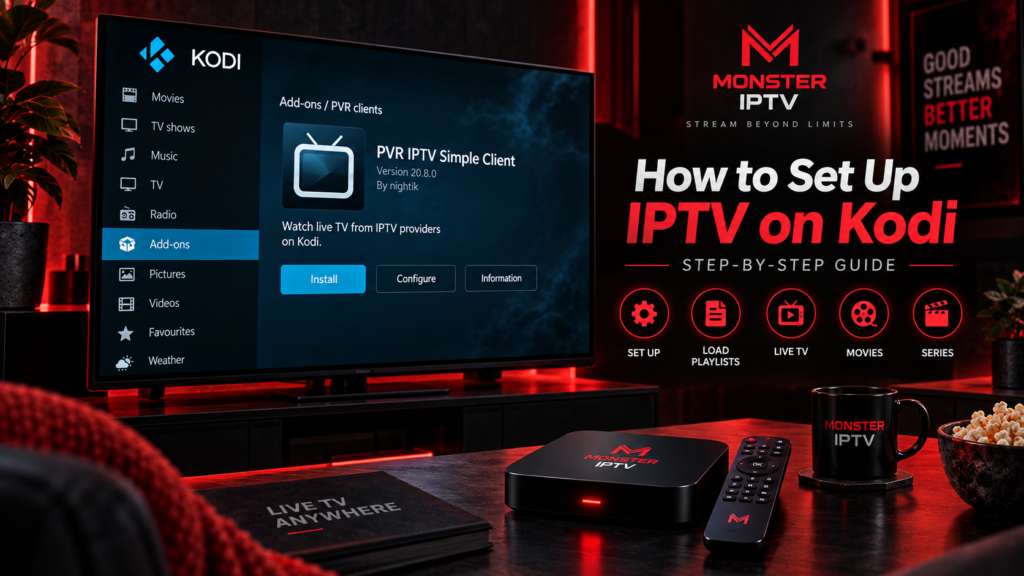
If you want to know how to setup Kodi IPTV, one of the simplest methods is to use Kodi’s official PVR IPTV Simple Client. The add-on can load an M3U playlist for live TV and XMLTV data for an Electronic Program Guide, or EPG. Kodi then displays the streams inside its normal TV interface.
You need Kodi, an authorized IPTV playlist, a working internet connection, and optionally an EPG URL. You do not need to install an unknown third-party repository just to use a standard M3U playlist.
As of September 2026, Kodi 21.3 “Omega” remains the current stable branch, while Kodi 22 “Piers” Beta 2 is still a prerelease version. Users who value stability should take that distinction into account when following setup instructions.
What Do You Need to Watch IPTV on Kodi?
Before starting, prepare the following:
- Kodi installed on a compatible device
- an M3U playlist URL or local M3U file
- an XMLTV EPG source if programme-guide data is available
- a stable internet connection
- access to streams you are authorized to watch
Kodi itself does not automatically provide an IPTV subscription or channel lineup.
The official PVR IPTV Simple Client is designed to bring IPTV into Kodi’s PVR interface. Kodi states that it supports M3U playlists, live television streams, radio channels and EPG information.
If you need general instructions for other IPTV players and devices, Monster IPTV also maintains separate IPTV installation guides.
How to Setup Kodi IPTV With PVR IPTV Simple Client
The following method uses Kodi’s official add-on repository.
Step 1: Open Kodi Add-ons
Launch Kodi and open Settings.
Go to:
Add-ons > Install from repository
Select the official Kodi Add-on Repository if Kodi asks you to choose a repository.
Then open:
PVR clients
Kodi’s official documentation lists this as the normal installation path for IPTV Simple Client.
Step 2: Install PVR IPTV Simple Client
Find PVR IPTV Simple Client or IPTV Simple Client, depending on how it is labelled in your Kodi version.
Select it and choose Install.
The add-on is part of Kodi’s official PVR client collection, so a standard IPTV setup does not require downloading a random ZIP file from an unknown website.
After installation, open the add-on information page and choose Configure.
Step 3: Add Your M3U Playlist
Inside the IPTV Simple Client configuration, locate the playlist settings.
Depending on the Kodi and add-on version, you may be able to select either:
- a remote M3U playlist URL
- a local M3U file
If your IPTV source provides a URL, enter the complete address exactly as supplied.
Do not remove characters, spaces or parameters from the URL unless you know they are unnecessary. Some playlist addresses can contain authentication information.
Kodi’s official documentation confirms that IPTV Simple Client uses the M3U format as its live TV source.
Save the configuration when finished.
How to Add an EPG to Kodi IPTV
An EPG is optional for playback, but it makes Kodi much easier to use as a television interface.
EPG stands for Electronic Program Guide. It can show:
- current programmes
- upcoming programmes
- programme start and end times
- channel schedules
- descriptions when supplied
IPTV Simple Client supports XMLTV-format guide data.
Open the add-on’s EPG settings and enter the XMLTV URL or local guide file supplied for your setup.
The playlist and EPG are separate. Your channels may therefore work even when the TV guide is empty.
Kodi can use identifiers in an M3U playlist, including tvg-id, to associate channels with entries in the XMLTV guide. Incorrect matching can cause some channels to display “No information” even though their video streams work normally.
For viewers in Sweden, also make sure the device uses the correct Swedish time zone so programme times are not shifted incorrectly.
How to Watch IPTV on Kodi After Setup
Once the playlist and optional EPG have been configured, save the changes.
Kodi may need to refresh its PVR information or restart before the channel list appears.
Return to Kodi’s main interface and open the TV section.
You should then be able to browse the channels supplied by your playlist.
Depending on the playlist information, Kodi may also display:
- channel groups
- channel numbers
- logos
- radio stations
- EPG information
Kodi’s IPTV Simple Client supports M3U metadata such as group-title, tvg-id, tvg-name, tvg-logo and channel-number information.
If you are using Swedish and Nordic channels, a correctly structured playlist and matching EPG can make navigation much easier than browsing a raw M3U file.

IPTV Simple Client vs IPTV Manager in Kodi
These two Kodi add-ons serve different purposes.
PVR IPTV Simple Client is the more relevant option when you already have an M3U playlist and want to display it as live television inside Kodi.
IPTV Manager is designed to integrate IPTV channels supplied by other Kodi add-ons into Kodi’s TV and Radio menus. Kodi describes it specifically as a tool for integrating channels from other add-ons.
Therefore, if your setup consists of an ordinary M3U URL plus an XMLTV EPG URL, start with IPTV Simple Client.
Adding IPTV Manager unnecessarily will not improve a basic M3U configuration.
Can You Use Kodi IPTV on Different Devices?
Kodi can be used across several device types, but the exact menus and installation method can differ slightly.
The current IPTV Simple Client package is available through Kodi for platforms including Android, Windows and macOS.
The same basic IPTV structure remains:
Kodi + PVR client + playlist + optional EPG
On a television-focused device, Kodi provides a remote-friendly TV interface. On a computer, the same setup can be controlled with a keyboard and mouse.
If your device is mainly used for IPTV and you prefer a dedicated player instead of Kodi, you can compare other options in the Monster IPTV installation section.
Why Is Kodi IPTV Not Working?
If the TV section remains empty or streams fail, check one component at a time.
The Channel List Is Empty
Confirm that:
- IPTV Simple Client is enabled
- the M3U URL is complete
- the playlist source is accessible
- the configuration has been saved
- Kodi has refreshed the PVR data
If the URL requires authentication, make sure all credentials are correct.
Channels Appear but Do Not Play
Test several channels.
If one channel fails but the rest work, the issue may be specific to that stream.
If every channel fails, test your internet connection and verify that the playlist is still valid.
EPG Shows No Information
If video works but programme information is missing, focus on the EPG rather than reinstalling Kodi.
Check:
- XMLTV URL
- EPG refresh
tvg-idmatching- device time and time zone
- whether the guide contains the affected channel
IPTV Buffers in Kodi
Buffering can result from:
- weak Wi-Fi
- network congestion
- an unstable internet connection
- the source stream
- device limitations
- network routing
Try Ethernet if your device supports it. Testing another channel can also reveal whether the problem affects the entire setup or only one source.
Kodi Stopped Working After an Update
Check whether you are using a stable or prerelease Kodi version.
Kodi 22 “Piers” Beta 2 is currently a prerelease, and Team Kodi explicitly warns that beta builds can still contain bugs before the final v22 release.
For a living-room IPTV system where reliability matters, the stable release is generally the more conservative choice.
Do You Need Third-Party Kodi Add-ons for IPTV?
Not for a standard M3U IPTV setup.
Kodi already provides an official PVR IPTV client through its own repository.
This is useful because many online Kodi tutorials recommend external repositories even when they are unnecessary.
For a normal setup:
- Install Kodi.
- Install IPTV Simple Client from Kodi’s repository.
- Add your authorized M3U playlist.
- Add XMLTV EPG data if available.
- Open Kodi’s TV section.
That covers the core IPTV workflow.
If you have questions about IPTV accounts or general setup rather than Kodi itself, the Monster IPTV FAQ provides additional guidance.
FAQ
How do I watch IPTV on Kodi?
Install PVR IPTV Simple Client from Kodi’s official repository, configure an M3U playlist and optionally an XMLTV EPG source, then open Kodi’s TV section.
Does Kodi provide IPTV channels?
No. Kodi and IPTV Simple Client provide playback and TV-interface functionality. You need your own authorized IPTV source or playlist.
Does Kodi support M3U IPTV playlists?
Yes. Kodi’s official IPTV Simple Client supports M3U playlists for live TV sources.
Can I add an EPG to Kodi IPTV?
Yes. IPTV Simple Client supports XMLTV EPG information, allowing programme schedules to be displayed alongside supported channels.
Do I need IPTV Manager?
Usually not if you simply want to load an M3U playlist. IPTV Manager serves a different purpose, namely integrating IPTV channels from other Kodi add-ons into the TV and Radio interfaces.
Why does Kodi show channels but no TV guide?
The playlist and EPG are separate. Check the XMLTV source, refresh the EPG and make sure its channel identifiers correctly match the M3U playlist.
Conclusion
Learning how to setup Kodi IPTV is mainly about configuring the right PVR client rather than installing multiple third-party add-ons. Kodi’s official IPTV Simple Client can load an M3U playlist, integrate XMLTV EPG data and present the channels through Kodi’s normal TV interface. Configure the playlist carefully, check Swedish time settings for the programme guide, and troubleshoot the stream, EPG and network separately if something fails. For more IPTV setup information and viewing options in Sweden, visit Monster IPTV.
